| By using the "Bookmarks" channel, you can add links to your favorite websites. You can also add folders to help organize your bookmarks. For bookmarks and folders that are no longer needed, you can delete them. NOTE: You cannot EDIT an existing bookmark or rename a folder. The only method for modifying the bookmark/folder is to delete it. | 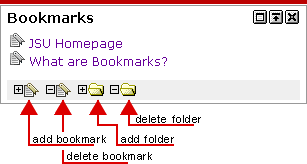 |
| | |
Add Folder 
You can create folders to better organize your bookmarks. The default selection is to create a "New Top Level Folder". This will create a folder that is not contained within another folder. The other choice would be to select an existing folder to store the new folder. | 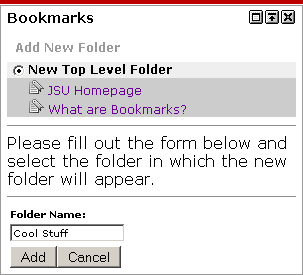 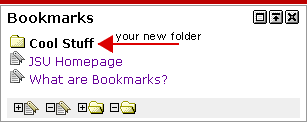 |
Add Bookmark 
The default selection is to create a "New Top Level Bookmark". This will create a bookmark that is not contained within a folder. The other choice would be to select an existing folder to store the bookmark. In the example, we are adding a bookmark to an existing folder called "Cool Stuff". NOTE: Since you cannot EDIT an existing bookmark, a bookmark that is created as a "New Top Level Bookmark" cannot be moved later into a folder. The URL must contain the full address of the website for the link to work properly. Example: http://www.google.com Not www.google.com | 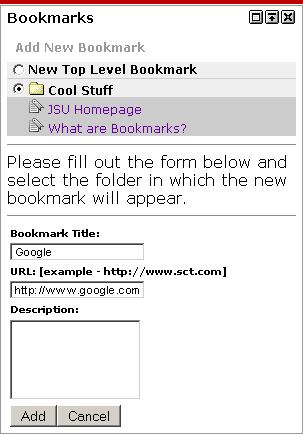 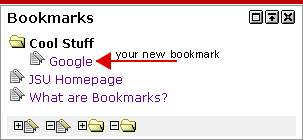 |
Delete Folder 
Select the folder your wish to delete and click "Delete" button. NOTE: Any bookmark and sub-folders contained within the selected folder will be deleted. | 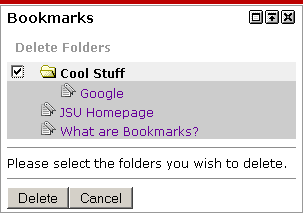 |
Delete Bookmark 
Select the bookmark your wish to delete and click "Delete" button. | 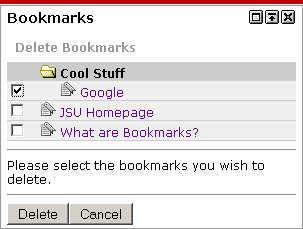 |